
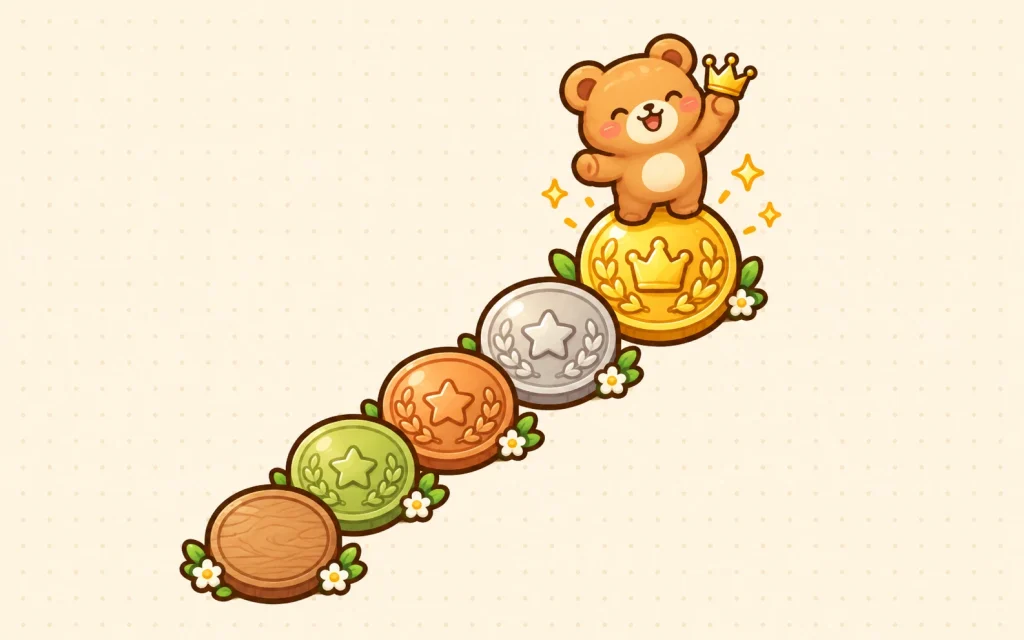
Sub badges and bit badges both sit next to a viewer’s name in your Twitch chat and use the same three image sizes. They measure different things, though. A sub badge shows how long someone has been subscribed, and a bit badge shows how many Bits they have cheered in your channel in total. Twitch keeps them in separate parts of the dashboard with slightly different rules.
The files in a Pinicon badge set
Sub badge sets have a For_Twitch folder with three subfolders, 18×18, 36×36 and 72×72, plus 500×500 px copies for personal use such as overlays or social posts. Bit badge sets have the same three sizes in For_Bit_Badges, and a For_Emote_Rewards folder with each design again at emote sizes (28, 56 and 112 px). The number in a file name is the badge’s position in the set, so 18_…badges3.png, 36_…badges3.png and 72_…badges3.png belong together.
Sub badges
Twitch’s requirements for sub badges:
- three sizes: 18×18, 36×36 and 72×72 px
- PNG with a transparent background
- no more than 25 KB per file
In your Creator Dashboard, open Monetization → Subscriptions → Subscriber Badges. Choose a milestone from the dropdown under Manage Badges, click the + on each of the three boxes, upload the matching sizes of one design, and click Save Changes. Repeat for the next milestone.
Sub badges go live as soon as you save. Unlike emotes, they only appear in your own channel, so Twitch doesn’t review them first.
The dropdown only lists milestones you have unlocked. Monetized channels start with badge slots up to one year of subscription and Partners up to ten years; as your time in the program grows, Twitch opens one more year of slots. A set with more designs than your current milestones isn’t wasted: upload the first ones now and add the rest as new milestones appear.
Pinicon sub badges are drawn to climb. The Skull set, for example, goes from a plain bone skull through crowns of twigs, silver and gold to a solid gold skull, so put the plainest design on the first milestone and the most elaborate one on the longest.
Two badges can’t be replaced. The Founders badge, which goes to a channel’s first 10 subscribers (25 for Partners), is always Twitch’s own design. Badge flair, the small overlay Tier 2 and Tier 3 subscribers get, only works once you have uploaded a custom sub badge.
Bit badges
Affiliates and Partners can replace the default Bits badges, starting with the 1 Bit and 100 Bits tiers. Open Monetization → Bits & Cheering → Bits Tier Badges, click Edit on a tier, optionally give the badge a name, drop the 18, 36 and 72 px files into the three boxes, and save.
The new design is live right away, but a viewer who already holds that tier keeps seeing the old badge until they cheer again. Twitch accepts static PNGs only for Bits badges, and every tier is switched on by default. If you don’t want a tier, deselect it on the same page.
A set has fewer designs than Twitch has tiers, so give your designs to the tiers your viewers actually reach and leave the higher ones on Twitch’s default.
Emote rewards
From the 1,000 Bits tier upwards, each tier can also unlock an emote that viewers can use anywhere on Twitch. The first three slots (1,000, 5,000 and 10,000 Bits) are open from the start, and the others open as your viewers reach those tiers. You’ll find them under Viewer Rewards → Emotes, in the Bits Tier Emotes section.
These are ordinary emotes, so the emote rules apply: a 112×112 px PNG under 1 MB, or all three sizes in manual mode, and Twitch’s review unless your channel qualifies for instant upload. The For_Emote_Rewards folder has each badge design at those sizes, so a viewer who reaches the 5,000 Bits badge can also get the matching emote.
When Twitch rejects a file
The 25 KB limit on sub badges is strict. A 72 px badge with a lot of shading or a gradient can come out just over it after editing or re-saving. A PNG compressor such as TinyPNG reduces the file size without changing its dimensions or transparency. If a file straight from one of our zips is refused, message us on Etsy with the file name and we’ll send a smaller version.