Twitch panels are the row of image tiles on your channel page, below the player while you’re live and in the About section when you’re offline. They hold what a new visitor looks for before deciding to follow: your schedule, your rules and where else to find you. Here’s how to add them on Twitch and Kick, and how to get the most out of a 51-panel set without putting all 51 on your page.
Image sizes for Twitch panels
Twitch’s limits for panel images are short:
- under 1 MB per image
- at most 320 px wide and 600 px high; larger images are scaled down to fit
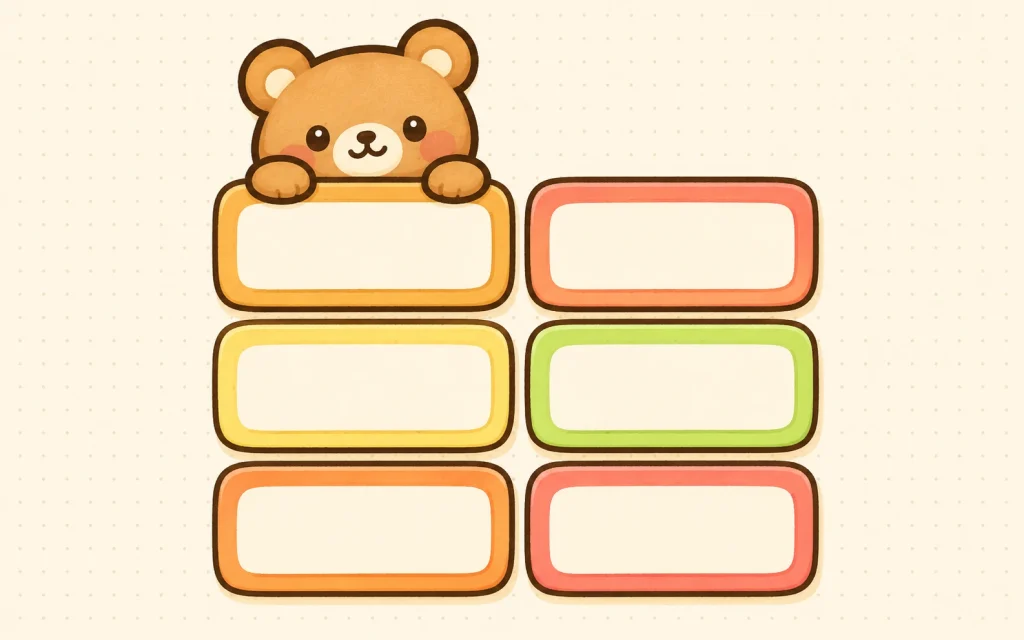
Every Pinicon panel is exactly 320 px wide, so Twitch shows it at full size without rescaling. The height depends on the set, from 141 px for Sage Green to 275 px for Cute Bear, and no file is larger than about 110 KB.
Adding Twitch panels
- Go to your channel page. If you’re offline, open the About section.
- Switch Edit Panels on. The switch is at the top left, under the video player.
- Click the + tile to add a new panel.
- Upload the image, and fill in the optional title, image link and description.
- Click Submit. Repeat for the next panel, then switch Edit Panels off to see the result as visitors will.
To change the order, switch Edit Panels on again and drag a panel to its new place.
Use the image link and the description
The image link turns the whole panel into a button. Point the Discord panel at your server invite, the Tip Jar panel at your tipping page and each social panel at your profile there. A panel without a link is a picture, and visitors who click it expecting to land somewhere get nothing.
The description appears under the image and accepts Markdown (Twitch doesn’t allow HTML there). A few examples:
**Mon, Wed, Fri at 8 pm CET**shows the text in bold.[Join the Discord](https://discord.gg/your-invite)creates a link.- Lines starting with
-become a bulleted list, which suits a rules panel.
Put anything that changes, such as stream times, a current goal or a giveaway end date, in the description instead of the image. Editing a line of text takes seconds, while changing it in the image means opening an image editor again.
Choosing panels from a set of 50
A Pinicon panel set has 50 titled panels and one blank one. The Cute Bear set, for example, covers common sections (About Me, Schedule, Rules, Socials, Discord, Tip Jar), less common ones (Commands, Specs, Setup, Mods, Credits, Playlist, Merch) and buttons for most social networks. You only need the ones you can fill with something real. A Patreon panel with no Patreon behind it, or a Schedule panel on a channel that streams whenever it can, sends visitors to a dead end.
For a channel that’s just starting out, these five are usually enough: About Me, Schedule, Rules, Discord or Socials, and Tip Jar if you take tips. You can add Commands or Specs later, once viewers start asking about them in chat.
Making your own title with the blank panel
If a section you need isn’t in the set, use the blank panel. The zip includes a short note with the font and the color code of the titles. All five current panel sets use Baloo 2 Bold, which is free on Google Fonts, and each set has its own title color (#7c482f for Cute Bear, for example).
- Install Baloo 2 from Google Fonts.
- Open the blank panel in an editor that keeps transparency, such as Photoshop, Photopea or Canva.
- Type your title in Baloo 2 Bold, using the color code from the note, and center it on the label.
- Export as PNG at the original size. Don’t resize it, so it lines up with your other Twitch panels.
Kick
Kick panels work the same way as Twitch panels, and Pinicon panels fit there as well. Open your channel page, click the About tab, then Edit Panels, enter the panel’s details and click Add. If you only want the image to show, Kick suggests leaving the title and description fields empty. Panels are reordered by dragging them, and removed with the Remove button in the same Edit Panels view.