
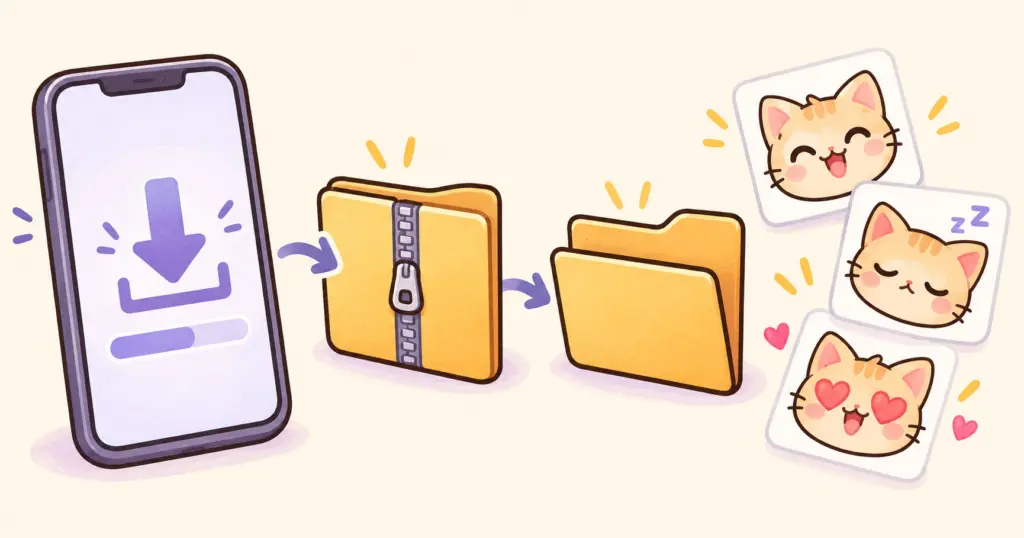
To download Etsy digital files on your iPhone, open Etsy in a web browser, sign in, and go to Your account → Purchases → Download Files beside the order. Etsy’s app currently cannot download digital purchases. If the download is a ZIP, open it in your phone’s file manager to extract the contents. Etsy’s download guide explains the purchase steps.
For an emote pack, there are two separate jobs: getting the purchase onto your phone and finding the individual images inside it. Once you can open those images, you are ready to follow the upload instructions for your channel or server.
Get the download from your Etsy order
Open Etsy.com directly in Safari or Chrome. Before searching your purchase history, check that you are signed in to the account you bought with. If you use several Etsy accounts, compare the order with your receipt rather than buying the pack again.
Bought as a guest? Use the download link in your receipt email.
An instant download becomes available after payment confirmation. A made-to-order item arrives after the seller finishes it. A gray Download Files button can mean payment is still processing.
Find and open the files on iPhone or iPad
After a Safari download, tap the browser’s Downloads button, then Downloads to see the file. You can also open Files → Browse → iCloud Drive → Downloads, the location shown in Apple’s download instructions.
If the file is a ZIP:
- Find it in the Files app.
- Tap the ZIP. Files creates a folder containing its contents.
- Open the new folder, then any folders inside it, to reach the images.
These are the steps in Apple’s ZIP-file guide. A ZIP bundles files together; extracting it gives you access to the separate items.
Look for the actual image files before leaving Files. An archive icon means you are still looking at the package, while a folder may lead to another level of folders. You do not need to turn the entire pack into one picture.
Find and unzip the download on Android
In Chrome, open the More menu and choose Downloads to find your recent download. Google’s Chrome download guide covers this menu.
To extract a ZIP with Files by Google:
- Open Files by Google and find the folder containing the ZIP.
- Select the ZIP, then tap Extract.
- Review the extracted files and tap Done.
- Look in the same folder as the original ZIP for the extracted contents.
Google’s unzip instructions apply specifically to Files by Google and ZIP archives. If your phone uses a different file manager, its menus may differ. The steps above are an option when your usual file manager does not offer an obvious extraction command.
If extraction reports that storage is full, make space before trying again. Keep the original download until you have checked that the extracted images open.
Choose the image file, not the preview sheet
An emote purchase can include several versions of the same expression. Read the seller’s folder names and included instructions before choosing one at random.
For example, Pinicon’s Red Mushroom Emotes listing includes transparent PNGs in different sizes for Twitch, Discord, and Kick. Seeing the same mushroom reaction in several folders does not mean you downloaded unwanted duplicates; those versions serve different upload requirements.
Use the platform-labeled folder supplied with your pack. Keep a simple note of the filename for each expression you choose, especially if you plan to use it on more than one platform.
Avoid taking a screenshot of the product preview to use as your emote. The preview shows the artwork for browsing; the individual purchased files are the ones to work from. Renaming a ZIP to end in .png also will not extract the images inside it.