
You can use the same badge artwork on Twitch and KICK if your license covers both channels and you have files each uploader accepts. Before buying a pack, count the distinct designs you need, check the milestones you can actually customize, and confirm the upload requirements on both accounts. A pack with 24 PNG files may contain eight designs in three sizes.
Start with a small set of milestones where you already have subscribers or expect to have them soon. Reserve later designs if you want regular changes beyond that. The two channels can share a recognizable badge family even when their subscribers reach milestones on different dates.
Check what each channel can use
| What to check | Twitch | KICK |
|---|---|---|
| Where to check your slots | Creator Dashboard → Monetization → Subscriptions → Subscriber Badges | Creator Dashboard → Chat → Sub badges |
| Who can add custom badges | Twitch documents the feature for monetized streamers | KICK documents it for Affiliates and Partners |
| How to count milestones | Use the slots available in your dashboard. Twitch ties later unlocks to how long the channel has been monetized | KICK lists Base, 2, 3, 6 and 9 months, 1 year, then six-month steps through 8 years |
| Files to prepare | Three transparent PNGs for each design at 18 × 18, 36 × 36 and 72 × 72 pixels. Each file must be at most 25 KB | KICK documents a transparent PNG for each milestone. Check the current uploader for accepted dimensions and file size |
Use your dashboard as the shopping list. KICK’s guide lists its milestones and identifies the file format. Check the upload prompt before assuming one of your Twitch files can go straight into it. If you can’t see the uploader yet, ask the seller which sizes are included and whether they provide a file for KICK. That’s a useful question before checkout, especially if you want a pack you can use as delivered. Twitch Subscriber Badge Guide and KICK’s subscription badge guide.
Subscriber badges mark support for a particular channel. Twitch bases the badge on total subscription tenure, and KICK advances its badge as a viewer reaches milestones on that channel. A matching icon gives viewers a visual connection between the channels. Uploading it doesn’t move anyone’s subscription history. Twitch’s subscription tenure guide and KICK’s chat badge guide.
Map the artwork to milestones before uploading
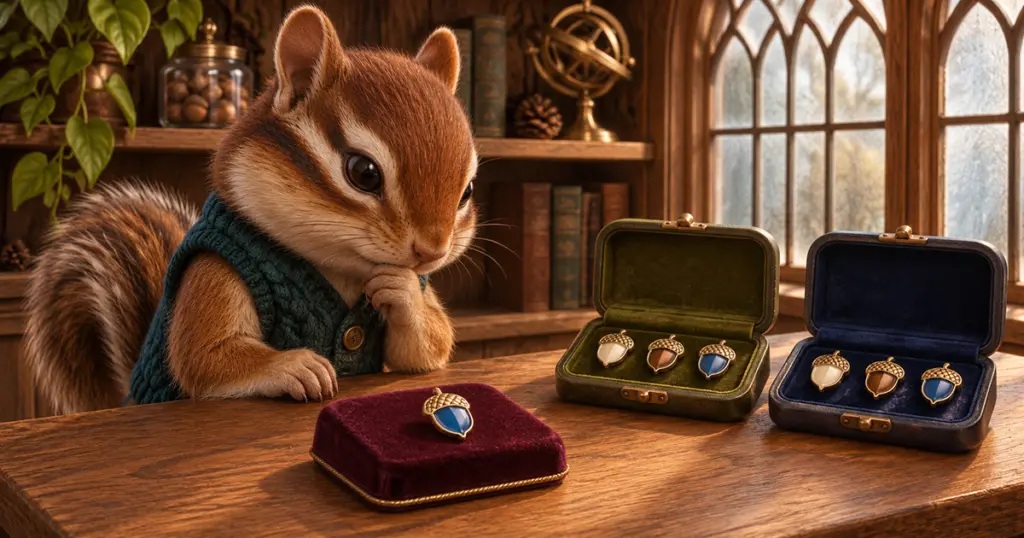
Here’s a sample plan for a streamer who wants the first six KICK slots to look different and has eight acorn designs. The numbers refer to artwork, so all three Twitch sizes of design 03 are still one design. Check for the matching slot on Twitch before assigning a file there.
| Milestone | KICK sample assignment | Twitch plan |
|---|---|---|
| Base | 01 · Cream acorn | Use 01 in Base |
| 2 months | 02 · Bronze acorn | Use 02 if the matching slot appears in your dashboard |
| 3 months | 03 · Blue acorn | Use 03 in the matching slot when available |
| 6 months | 04 · Green acorn | Use 04 in the matching slot when available |
| 9 months | 05 · Silver acorn | Use 05 if the matching slot appears in your dashboard |
| 1 year | 06 · Gold acorn | Use 06 in the matching slot when available |
| Later milestones | Reserve 07 and 08 | Assign them when you have the slots you want to use |
If one channel already has longer-serving subscribers, map their current milestones before filling all the early slots. You might use one of the reserves to recognize a two-year milestone on the older channel and keep it available for later on the younger one. Write down the assignment per channel. It saves you from shifting the rest of the set when an intermediate slot opens.
A strong year-one badge matters more than a design reserved for an anniversary nobody on the channel has reached. If the pack’s standout icon is the one you want every new subscriber to have, try it as the base and check that the rest still feel like a family. The order in a ZIP is a starting point you can adapt.
Upload one badge and check it in chat
- Open the ZIP and find the first design. Group its files by design and size. If the filenames are unclear, look at the image dimensions and preview the matching trio before you upload.
- Start with Base on Twitch. Choose Base in Subscriber Badges and put each size of that design in its corresponding field. Save, then ask a subscriber whose current badge should show the base design to send a message. For the full Twitch upload process, see Pinicon’s badge setup guide.
- Test Base on KICK separately. Open the current upload prompt, choose a file that meets its requirements, and save. Ask an eligible subscriber to post in that channel. Check the icon beside their name and confirm it still reads at chat size.
- Finish the mapped slots. Once the first design looks right, work through the plan one milestone at a time. Keep a copy of your map beside the original ZIP so you can identify the right files when a new slot opens.
A viewer who has already earned a later badge may be showing a different design from the one you just uploaded. Check their milestone and the selected slot before replacing any files. On Twitch, a Founders Badge or subscription flair can also affect what you see. For a side-by-side comparison, ask viewers who are on the same milestone, or compare the dashboard previews if you don’t have a matched pair. Twitch Subscriber Badge Guide and KICK’s chat badge guide.
Keep the spare designs in the ZIP until you have a milestone for them. When that slot opens, you already know which icon belongs there and can repeat the one-badge check on the channel that needs it.