
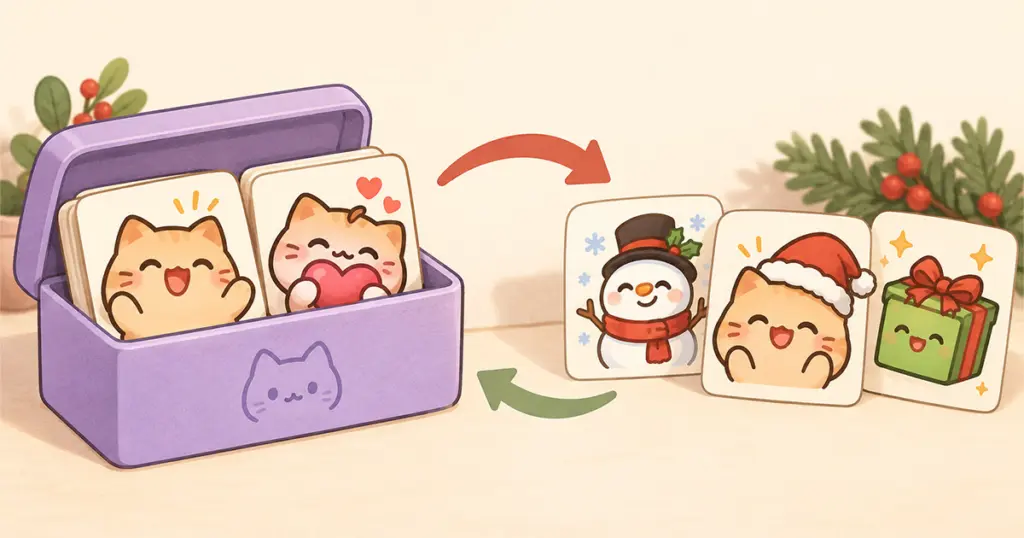
To switch Twitch emotes for Christmas, choose a small seasonal lineup, prepare it before your holiday streams, and keep a record of the emotes it will replace. Twitch lets you remove an emote from an active slot while keeping it in your Library for later reassignment. That gives you a way to bring your regular set back after the holidays.
You can also leave your usual favorites active and add a festive reaction if you have room. A holiday pack does not need to take over the whole channel.
Decide which reactions will stay
Start with the emotes your viewers already use. Keep the greeting that welcomes regulars, the reaction tied to a running joke, or the heart people send when someone needs support. If an emote feels closely associated with your channel, it can stay through December.
Then choose where a temporary change would be welcome. Here is an example plan for a channel that wants a few Christmas reactions:
| Current reaction | Holiday plan | What to record |
|---|---|---|
| Familiar welcome emote | Keep it active | No replacement needed |
| A less-used celebration | Try a festive celebration from the seasonal pack | Original code and subscription tier |
| A spare reaction you rarely mention | Give that place to a holiday greeting | Original code and subscription tier |
| A well-known community joke | Keep it active | No replacement needed |
These are editorial choices, not a required number of seasonal emotes. If every current reaction has a purpose, use an empty slot or make a smaller change. You do not have to retire a favorite just because a pack contains more artwork than you can use at once.
Check active slots and Library space separately
Your Library stores emotes; active slots determine which ones are available to viewers. Uploading artwork into the Library alone does not activate it. Twitch explains these separate roles in its Subscriber Emote Guide.
Check both kinds of space before preparing a large seasonal set. An empty active slot does not necessarily mean there is room for another Library upload. If your Library is full, removing an emote from a slot will not clear that storage space.
For a temporary swap, use Remove from Slot. Delete from Library permanently removes the emote from the Library and any assigned slot. Twitch’s Emote Library guide documents the difference. If keeping your current collection intact leaves no room, scale back or postpone the seasonal upload.
Prepare the Christmas set before the first holiday stream
Choose the actual expressions you plan to activate before uploading. For a relaxed evening, that might be a greeting and a cozy reaction; a community game night might suit a celebration. Look through the finished pack for those uses rather than treating every image as a slot you need to fill.
For example, Pinicon’s Santa Claus Emotes include waving, laughing, and heart reactions as transparent PNGs. Those give a streamer several ways to use the same holiday character in ordinary conversation. A pack you already own may cover your plan just as well.
Keep a simple swap note: the regular emote’s code and tier, the seasonal replacement, and the stream after which you intend to restore it. A screenshot of your current lineup can help you check the result later.
Twitch supports uploading directly to the Library with Upload New, leaving the emote inactive until assignment. New uploads may need approval; eligible channels have instant-upload access. Check each emote’s status before announcing that it is available. The Subscriber Emote Guide above covers this process.
Allow time to resolve a file or review problem before your planned debut. There is no need to promise viewers a launch time before you know the set is ready. For file selection and upload instructions, use the guide to adding emotes to Twitch, Discord, and Kick.
Switch the selected emotes into active slots
Once the seasonal uploads are approved and you are ready to change the lineup:
- Open your Creator Dashboard and go to Viewer Rewards → Emotes → Subscriber Emotes.
- For each regular emote you are temporarily replacing, choose Remove from Slot and confirm the removal.
- Select the seasonal emote in the Library. Use Slot Assignment to choose the intended subscription tier, with an available slot.
- Check the resulting lineup against your swap note.
The two Twitch guides linked above cover removal and assignment. Keep this change limited to the reactions you planned; there is no need to move the rest of your set around at the same time.
Introduce the seasonal emotes with their exact codes and a brief explanation of when you might use them. For instance, show the holiday greeting at the beginning of your first December stream. Tell viewers which familiar emotes are taking a break and when you expect them back.
Restore your regular lineup after the holidays
Choose a return point that fits your schedule: after the last Christmas stream, or before your first ordinary stream in January. Put it in the same note as the swap plan so it does not become another task to remember.
Remove the seasonal emotes from their active slots, then reassign the regular ones from your Library. Compare the codes and tiers with your saved lineup. You can keep the seasonal artwork in the Library for another occasion if capacity allows.
Before next year’s swap, review what people actually enjoyed using. Keep the reactions that became part of the conversation and skip the ones that needed repeated explanations. Your next holiday lineup can be smaller than the first.