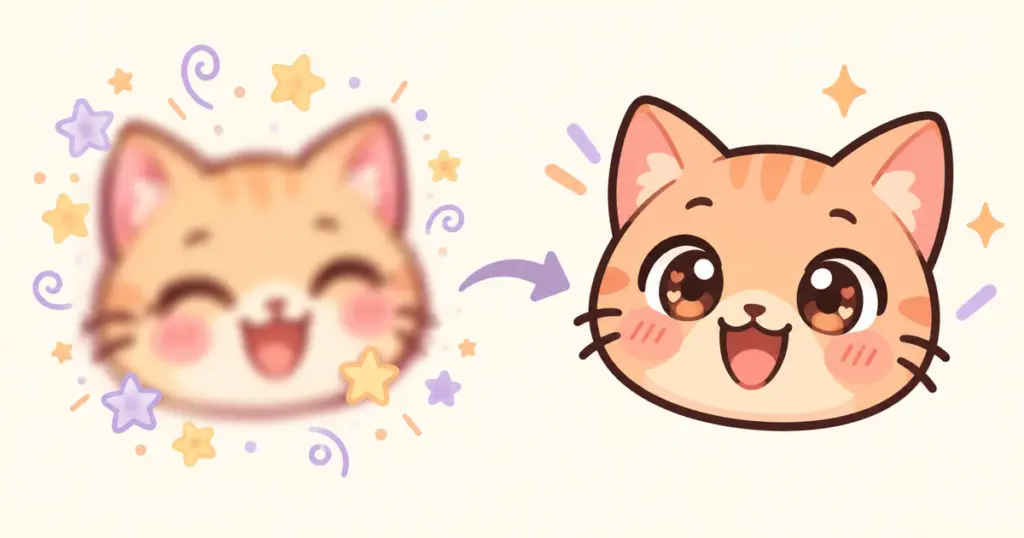
Emotes can look blurry because the source file is too small, the artwork loses detail when reduced, or the app displays the image at a different scale. Start by opening your smallest exported file at 100% zoom. If it already looks unclear, work on the file or drawing. If it looks good there but poor in chat, check the upload and display settings before redrawing it.
This guide focuses on static emotes. Animated emotes need additional checks for motion and frame quality.
Find out what “blurry” means in your emote
A soft edge, an unreadable expression, and a tiny face surrounded by empty space need different fixes.
| What you see | What to check first | A useful first change |
|---|---|---|
| The whole image looks soft, even outside chat | Whether you exported from a small preview or screenshot | Return to the original artwork |
| Edges look clear, but the expression is hard to identify | Tiny facial features and competing details | Enlarge the eyes or mouth and remove decoration |
| The character looks much smaller than nearby emotes | Transparent space around the drawing | Crop unused space while keeping the canvas square |
| The file looks good locally but unclear in chat | The uploaded file and app or browser zoom | Check the filename and compare at normal zoom |
| A pale fringe appears on dark backgrounds | Pixels along the transparent edge | Inspect the edge against both light and dark colors |
Keep a copy of the original before making changes. Adjust one thing at a time so you can tell which change helped.
Start with the original artwork
Use the artist’s source file or the largest original export you have. Avoid starting from a screenshot, a chat preview, or a small image saved from a message.
Making a tiny raster image larger does not restore the detail that was lost. Ordinary resizing calculates additional pixels from the existing ones. GIMP’s Scale Image documentation explains this distinction, along with how interpolation affects the result.
If you purchased an emote pack, check its folders before editing anything. There may already be separate files for the platform and size you need. Keep those exports intact and experiment on copies.
Give the expression more room
Imagine a waving cat with a hat, a sleeve, whiskers, a patterned scarf, and three floating hearts. At a large size, every detail has space. In a tiny emote, the hand and face compete with everything else.
Try a tighter crop around the head and waving paw. Remove the scarf pattern. Keep one heart if it adds meaning. Then check whether someone can identify the greeting without being told what it is.
The expression should guide the edits:
- For surprise, make the open mouth and raised brows easy to distinguish.
- For crying, keep a visible tear shape separate from the cheek shading.
- For laughter, make the mouth shape different enough from your ordinary smile emote.
- For a wave, separate the paw or hand from the side of the face.
These are design starting points, not fixed rules. A distinctive silhouette may communicate more than an extra facial detail.
Check the empty space
A large canvas does not guarantee a large-looking emote. If the character occupies only the middle of the square, much of the available image area is transparent padding.
Crop closer without cutting off ears, fingers, or outlines. Leave a little breathing room around the outermost marks, then compare the old and new versions at the same small size.
Preview small before you finish drawing
Keep a small preview visible while you work. Zooming into the artwork helps you clean edges; it cannot tell you whether the finished emote reads well in chat.
For a useful stress test, inspect a 28 x 28 pixel copy at 100% zoom. Twitch’s manual emote upload uses 28 x 28, 56 x 56, and 112 x 112 pixel versions, so the smallest export deserves its own check. Twitch describes these options in its subscriber emote guide.
Try your preview on both a pale background and a dark one. Watch for a dark outline disappearing into the background, pale details merging together, or a light fringe around the character. Adjust the affected colors or edge pixels rather than brightening the entire image automatically.
Tiny lettering needs a separate test. If a word is only readable when enlarged, shorten it, give it more space, or replace it with a clear gesture. Do not assume viewers will open the larger preview to understand the reaction.
Resize carefully, then inspect the export
Export each required size from the original artwork. This makes it easier to compare results without accumulating edits across several resized copies.
For smooth illustrations, try your editor’s high-quality downscaling option and inspect the result. For deliberate pixel art, compare a nearest-neighbor export with a smoothed version; preserving hard pixel edges may be part of the style. No single resizing setting will suit every drawing.
Avoid using heavy sharpening as the first fix. It cannot make an overcrowded expression simpler, and it can leave distracting bright or dark edges. Start with the crop, shapes, and contrast.
Use a PNG export when you need a static image with transparency, and open the exported file to check it. A transparent-looking checkerboard inside the editor is not enough: make sure you have not included a background layer in the export.
For Twitch, manual upload gives you control over each of the three sizes if the automatic versions are unsatisfactory. Once the files look right, follow the existing guide to adding emotes to Twitch, Discord, and Kick for the upload steps.
If the file looks clear but chat does not
First confirm that you uploaded the intended file. Similar names make it easy to select an older export or the smallest version when you meant to use the larger one.
Next, compare the emote at normal browser zoom and in another available client, such as the mobile app. Screen scaling and zoom affect how an image is displayed; a difference between clients does not by itself prove the source artwork is defective.
Keep the comparison controlled: use the same emote, a similar background, and normal viewing size. If only one client looks poor, record that difference before changing the artwork again.
A final check before uploading
Open the smallest export and ask someone to name the expression without seeing its filename. Then check the other sizes for clipped outlines, stray pixels, and unwanted backgrounds.
If the reaction is recognizable and the edges look clean at the intended size, stop editing. The large artwork may contain details that disappear in chat; the useful test is whether the small version still says what you meant.