
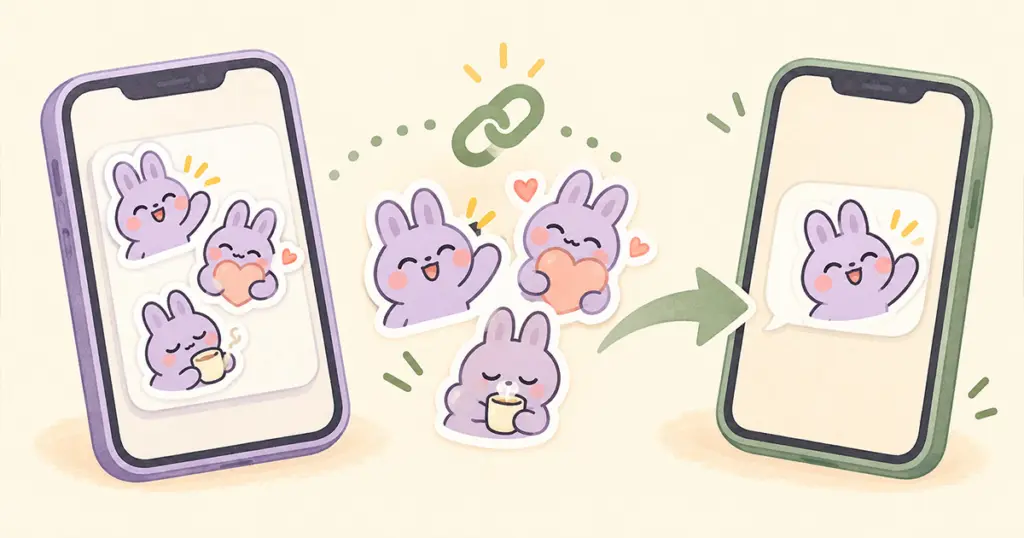
To add Telegram sticker packs, open a pack’s shared link or tap a sticker someone has sent you, then add the set from its preview. You can use the finished stickers without drawing anything or uploading the images yourself. Telegram confirms both sharing methods in its sticker-set guide.
The important starting point is what you have: a Telegram pack link, a sticker message, or a folder of downloaded pictures. Those lead to different actions.
Add a pack from a shared link
A standard Telegram sticker-pack link contains t.me/addstickers/ followed by the pack’s short name. Telegram’s link documentation identifies that format specifically for sticker sets.
- Open the complete pack link your friend or the seller supplied.
- If it opens a browser page, use its Add Stickers control to continue in Telegram.
- Check the pack name and artwork in the preview, then confirm the add action.
- Open the sticker panel in a chat and find the added set.
For a working example, Telegram’s own documentation links to the Duck sticker set. Its public page has an Add Stickers control. You do not have to use that particular pack; it shows what a direct sticker-set page looks like.
Review more than the cover sticker before adding a set. A cheerful greeting on the front may be part of a collection with a different tone. For a family chat or a community group, choose expressions you would be comfortable sending there.
Add the pack behind a sticker in a chat
If someone sends a sticker you like, start with that message:
- Tap the sticker to open its set preview.
- Look through the other stickers in the set.
- Choose the add option if you want the pack in your collection.
The sharing section of Telegram’s sticker-set guide above describes this shortcut. It lets you get the set behind an expression you have already seen in conversation, rather than asking the sender to export the artwork.
A screenshot of a sticker is different. If tapping it only opens an ordinary photo, ask your friend to send the original sticker message or its pack link.
Find the stickers after adding them
Open a conversation and use the sticker panel beside the message field. Select the pack you added and choose a sticker to send. Adding a set makes its stickers available in that panel; it does not send the entire collection to your conversation. Telegram explains pack access in its custom sticker sets guide.
Another route is to type an emoji that matches the expression you want. Telegram can suggest related stickers, as its sticker-set guide explains. For example, try a heart when you are looking for a warm reaction. The suggestions are a shortcut, so open the pack itself if you want to browse its full selection.
Check the link if the expected pack does not open
Not every Telegram link points to a sticker pack. Look at what you were sent before treating a missing add button as a download problem:
| What you have | What to check |
|---|---|
| A link containing t.me/addstickers/ | Keep the complete pack name at the end of the link |
| A link containing t.me/addemoji/ | This is a custom emoji set, a different link type |
| A link to a person, group, or channel | Ask for the sticker-pack link itself |
| A photo or screenshot of several stickers | Ask for the original sticker message or installable pack link |
Telegram documents sticker-set and custom-emoji links separately. Copy the original link again if it appears to have been cut off. If the correct link still does not show the expected set, ask the sender to open it and share a fresh copy.
If you are still looking at a browser preview, continue into Telegram before searching your sticker panel. Do not assume a pack has been added just because its webpage opened.
A PNG download is not an installed Telegram pack
Some digital-art purchases arrive as a ZIP containing individual PNG images. Accessing those files and adding an existing Telegram set are separate tasks.
You also do not need an import tool for a set that already exists on Telegram. The platform’s sticker-import documentation distinguishes importing artwork from sharing an existing pack. For an existing set, use its link or a sticker from the set.
When a friend asks where you found a reaction, send its pack link or one of its sticker messages. They can then open the set and decide whether to add it to their own collection.